
Check
Compare what really happened against how the work is supposed to run, and list every item that did not follow it.
Check compares the recorded work against an expected process: the way it is supposed to run. Use it for audits, controls and policy questions, such as “did every payment over $10,000 get a second approval?”
1. Ask your agent
Section titled “1. Ask your agent”Put your standard operating procedure (SOP), policy or BPMN process-diagram file in your folder and ask, for example: “How is it doing against the SOP?” The expected process can come from:
- an SOP or policy. Your agent writes it as an expected process, runs the check straight away and shows you the results. At the end of the same answer it lists how it read the SOP (the step order, which steps are optional, the choices) and asks you to confirm or correct it. If you correct it, it runs the check again.
- a BPMN file from your process tool. Your agent imports it, and tells you about anything it could not read.
- the map glasstarn found, if you decide that this is how it should run. Be careful: checking data against a map made from the same data will always look good.
Your agent records where the expected process came from. Rules that depend on a field, such as “senior review for claims over $25,000”, cannot be written into the expected process. Your agent checks those separately with a filter and reports them alongside.
2. Read the result
Section titled “2. Read the result”Once a check has run, a Conformance page appears in the menu. It shows the results only, the same way as the other pages:
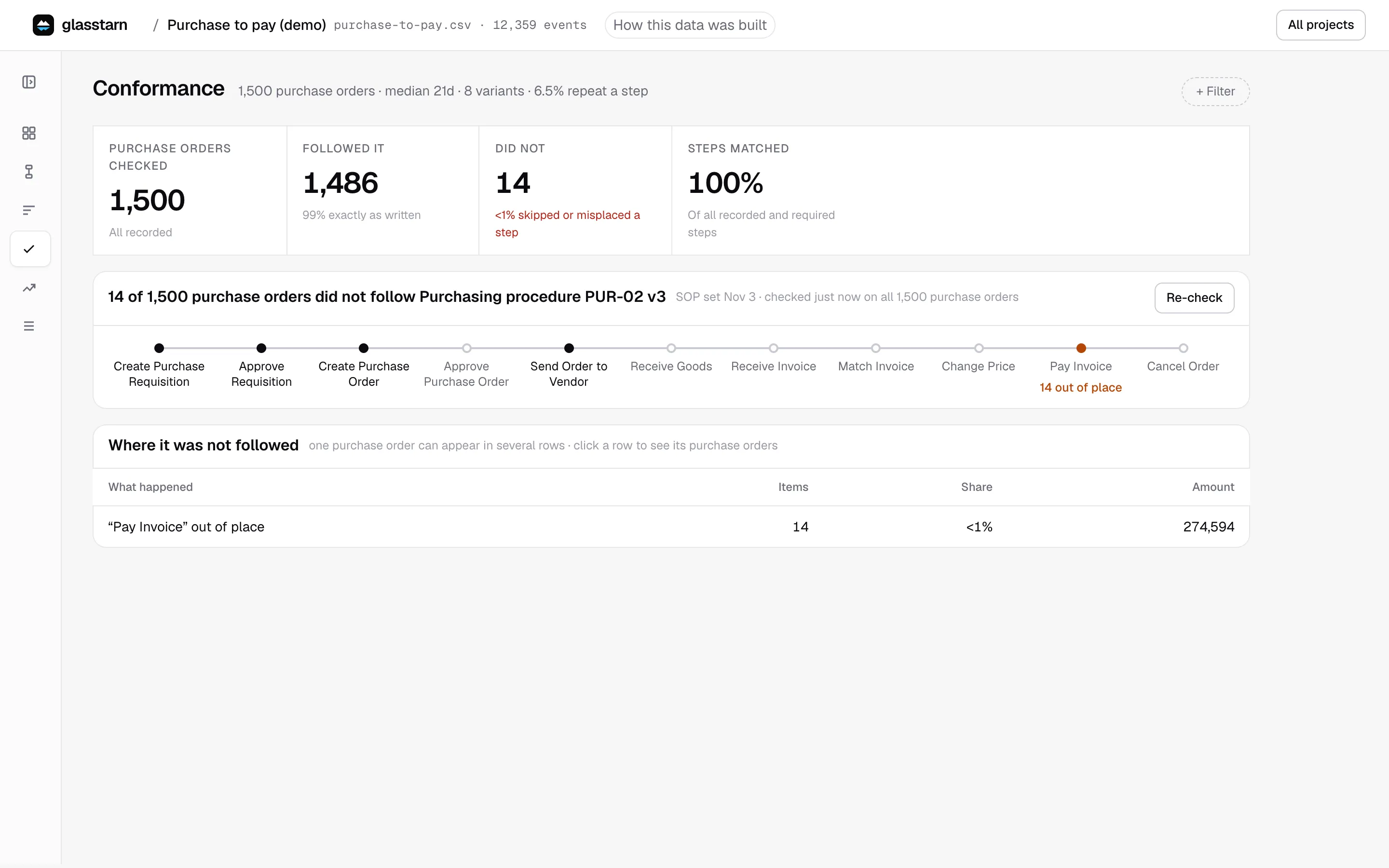
- The figure strip: items checked, how many followed it exactly, how many did not, and steps matched (the share of recorded and required steps that line up).
- The answer, for example 14 of 1,500 purchase orders did not follow Purchasing procedure PUR-02, with when the SOP was set and a Re-check button. The check runs again on today’s data each time you open the page.
- The SOP as a line of steps. Optional steps are lighter. Under a step that was skipped or done out of place, you see how many items did that.
- Where it was not followed: one row per kind of difference, such as Skipped “Approve payment”, with the number of items, their share and their amount. Click a row to see exactly those items, under one filter chip you can remove.
Every check is exact: each item’s recorded steps are lined up with the expected process to find the fewest steps skipped or out of place. The Overview shows a Follow the SOP tile once a check has run.
Coming back later in the same folder, your agent tells you which SOP you checked against and when, and the Conformance page shows those results re-checked on the current data.
What a check does not tell you
Section titled “What a check does not tell you”A deviation is a fact about the data, not a judgement. There may be a good reason, such as an emergency order. Ask the person who owns the process before calling it a breach.
Fitting the expected process is not a full audit opinion. It does not prove who was allowed to do what, or that duties were split correctly. It tells you what happened compared with what was agreed.