
Filters and items
Narrow every page to the work you care about, then open single items to see exactly what happened to them.
Use filters to look at just the work you care about, such as one region or last quarter. Open a single item to see exactly what happened to it.
Filters apply everywhere
Section titled “Filters apply everywhere”A filter narrows every page that works on items at once: Process, Variants, Measure, Conformance and Items. Returning to Overview clears the item filter so it shows the whole project. Each filter shows as a chip at the top of the page. Select the x on a chip to remove it, or Clear all to go back to everything.
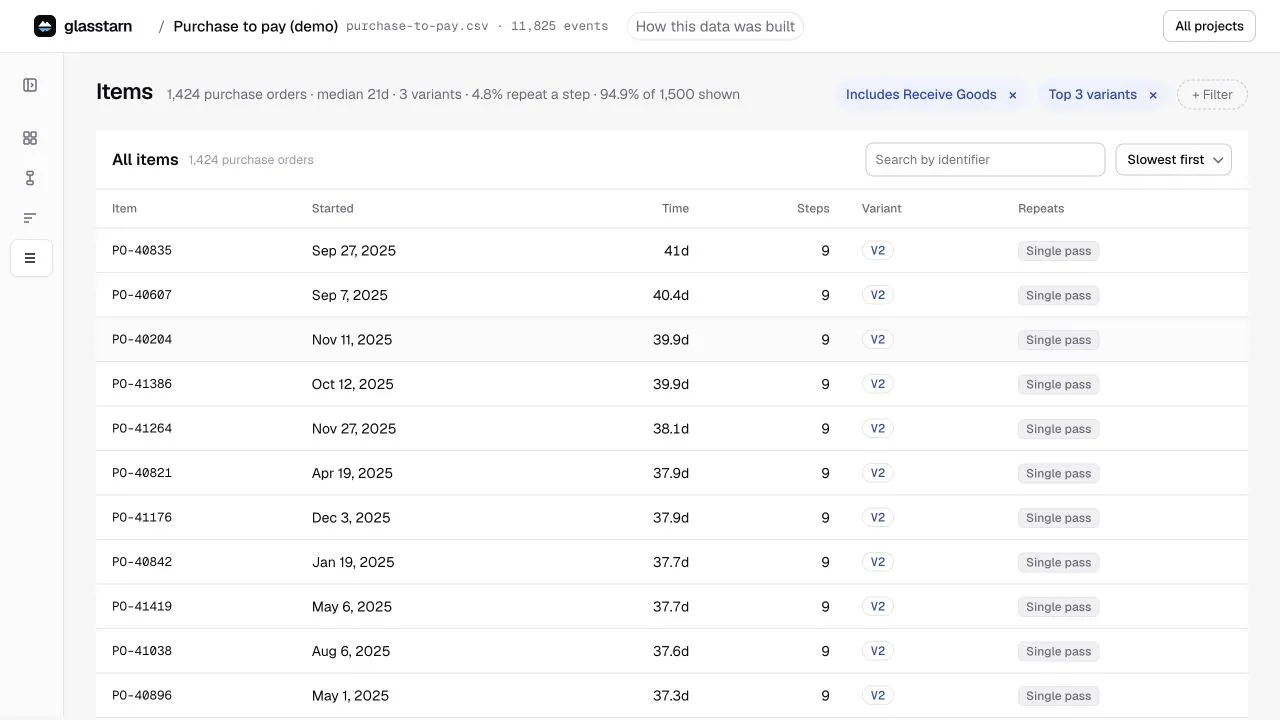
You add filters in three ways:
- + Filter at the top right of the page.
- From a finding, a bar in Measure, a variant or a subway line. These set the filter for you.
- By asking your agent: “only look at invoices over $10,000 from the east region”. The open page applies it for you.
The filter types
Section titled “The filter types”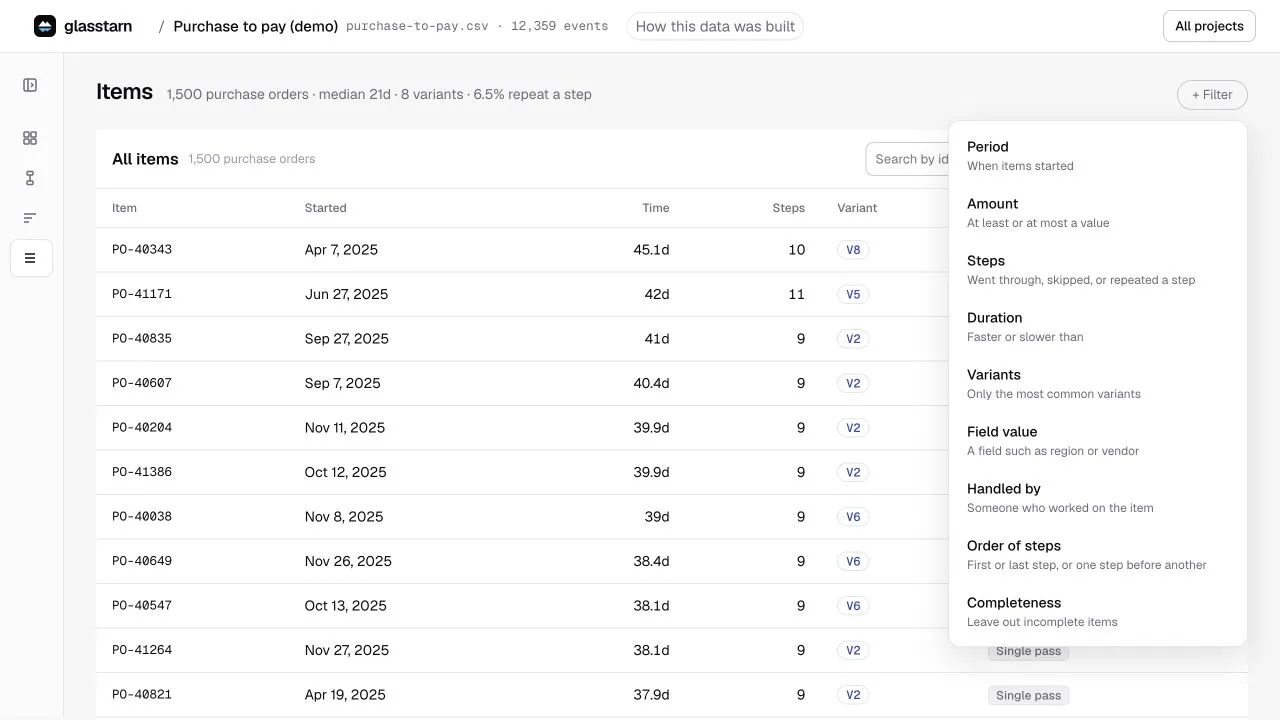
| Filter | Use it for | Example |
|---|---|---|
| When items started | A time period | Only orders created in Q3 |
| At least or at most a value | Amounts and other numbers | Invoices of $10,000 or more |
| Went through, skipped, or repeated a step | Items with or without a step | Orders that had Change Price |
| Faster or slower than | Speed | Items that took more than 30 days |
| Only the most common variants | The main routes, without the long tail | The top 5 variants |
| A field such as region or vendor | Any extra column | Region is East |
| Someone who worked on the item (Handled by) | People or teams | Items handled by the AP team |
| First or last step / one step before another | Order of steps | Items where Pay came before Approve |
| Leave out incomplete items | Only finished work | Leave out items still in progress |
Fields that change over time
Section titled “Fields that change over time”Some columns change during an item’s life, such as a status. A filter on such a field has two choices:
- Had at any step: the item had that value at some point. Ever on hold catches every order that was ever on hold.
- Latest value is: only the value the item ended with.
Incomplete items
Section titled “Incomplete items”An export covers a time window. Items that started before it, or had not finished by its end, can make times look shorter than they are. Leave out incomplete items offers Complete only, or only items that began inside the window.
The Items page lists the individual work items in your current filter: each order, invoice or ticket. Select one to see its full history:
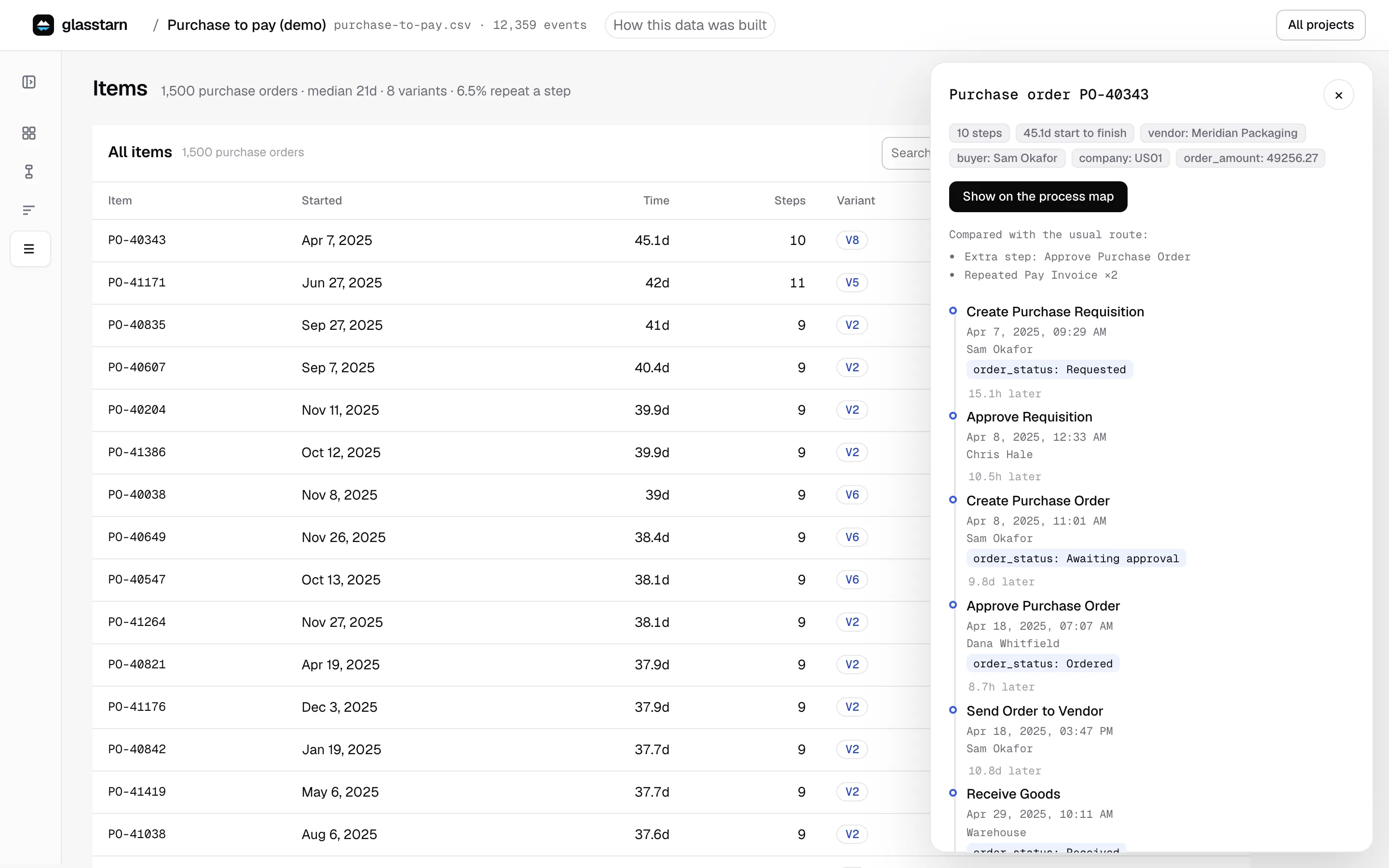
- every step, in order, with the time between steps
- who did each step, when your data says so
- how it differs from the usual route (Compared with the usual route)
- Show on the process map to draw this one item on the map
- Source details for the original record values
Times between steps are clock time, not hands-on work.